Wednesday, November 4, 2026
Motion Smoothing: Off for Movies, But Sports?
The match looked sharp, the ball easy to follow. Then the film began, and a candlelit costume drama suddenly looked like a daytime soap. Same TV, same setting. That setting is motion smoothing, and whether it is a friend or a villain depends on what is on screen.
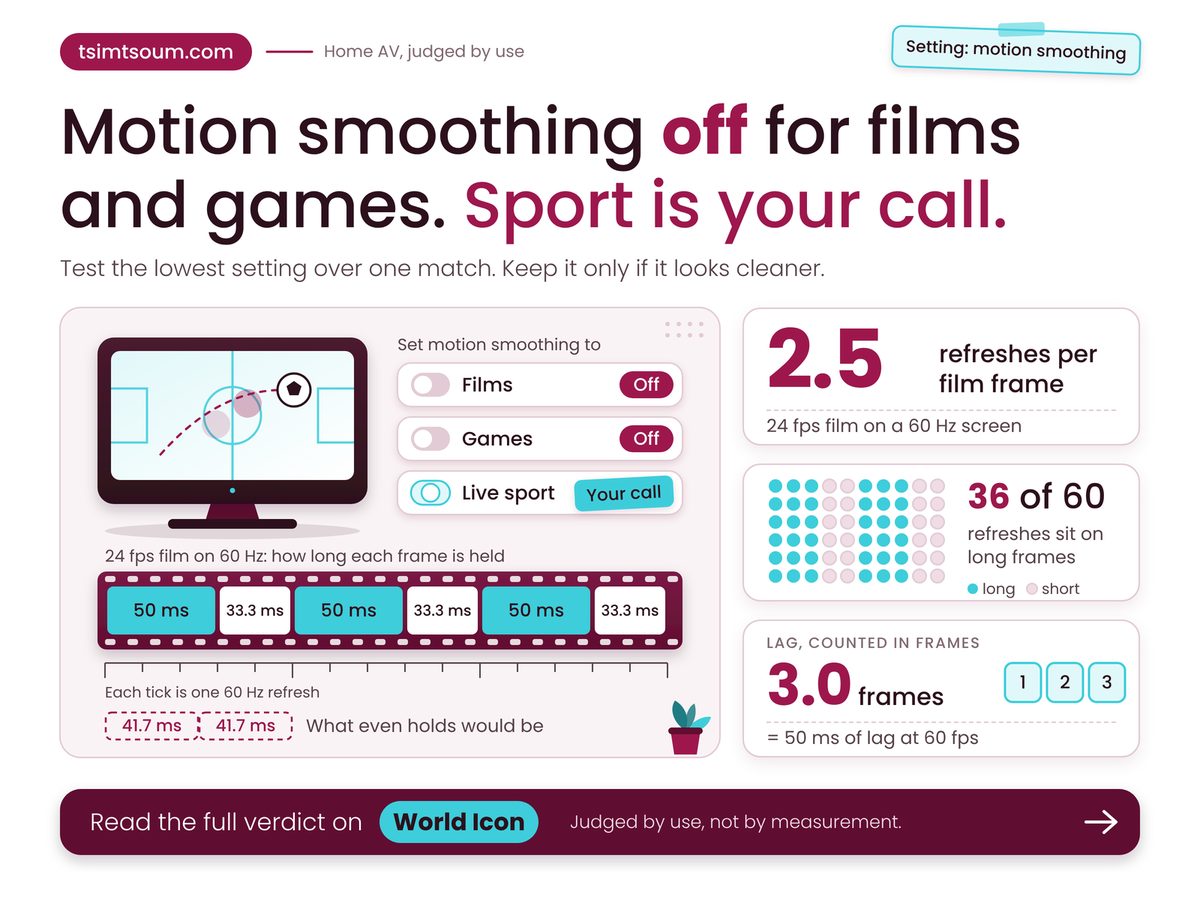
Switch it off for films and games; for live sport it is a taste call you can test in one match.
- Films and drama: use Filmmaker Mode or Off, since smoothing adds frames nobody shot.
- Live sport: try the lowest setting for one match; keep it only if the picture looks cleaner, not fake.
- Console games: leave it off, because processing adds lag you can count in frames.
- After updates: recheck the menu, because an off setting can come back.
Why does motion smoothing wreck films but sometimes help sport?
Motion smoothing invents extra frames between real ones, which is why it can make a 24 fps film look like a live broadcast while making fast live action easier to follow. RTINGS, whose motion-interpolation page was last modified in March 2026, calls it an optional feature TVs use to increase the frame rate of content. A guess between two real pictures helps when a camera whips across a pitch, and hurts when a director chose 24 frames a second on purpose.
Samsung's support page (dated July 2025 in its metadata) says smoothing suits live content such as sports, which it says is shot at 30 fps, while 24 fps movies are not meant for it and can pick up the soap opera effect. We trust the film half. The sport half is a vendor's preference worth testing.
Filmmaker Mode is the usual shortcut. Audioholics reported the UHD Alliance programme in November 2019 as switching off post-processing, including smoothing and noise reduction, and keeping the filmmaker's frame rate; Sony said it sets its own standards. That was 2019, so check your set. If it looks dim, see Filmmaker Mode looking too dark, and note that picture mode also sets what the set draws from the wall.
Four numbers decide how smoothing behaves in your room; one rests on an assumed delay you should replace with your own.
Longest frame hold
50 ms
Derived: 60 Hz panel, 24 fps film
Refreshes per film frame
2.5
Why 60 Hz cannot split evenly
Vendor pages read
4 brands
Samsung, LG, Sony and Roku
Lag if delay is 50 ms
3 frames
Derived at 60 fps, assumed delay
The ratio is the one a spec sheet never shows you. A 60 Hz panel cannot divide a film's frames evenly, so it alternates long and short holds, and that alternation, not smoothing, is the stutter on slow pans.
Switching smoothing off removes the soap opera look, not the stutter underneath it. On a 60 Hz panel that stutter is arithmetic, and the smoothing menu does not rewrite it.
Which setting fits which screen time?
The right setting depends on what is on screen and whether your thumbs are on a controller, so the rule is per content type, not per TV. Try this sum: divide your panel's refresh rate by 24, the frame rate of film. A whole answer (120 Hz gives 5) means even holds; a trailing .5 means alternating long and short ones.
Worked example: a 60 Hz TV showing a 24 fps film, using the 3:2 pull-down on LG's support page (June 2024). One refresh lasts 1000 / 60 = 16.7 ms. Frames held three refreshes stay up 50 ms, those held two stay up 33.3 ms, and an even rhythm would give 41.7 ms (1000 / 24). That 16.7 ms gap between neighbours is the stutter, and smoothing off does not remove it. For a console, assume 50 ms of added delay at 60 fps (our placeholder, not a measurement): 50 x 60 / 1000 = 3.0 frames late. By our reasoning the delay cannot fall below one source frame, about 16.7 ms at 60 fps, since the TV needs the next frame before drawing the one between.
The table turns the arithmetic and the vendor pages into five situations, each action with its reason beside it.
| If you are | Do this | Because |
|---|---|---|
| Watching film | Filmmaker Mode, or smoothing Off | Keeps the 24 fps cadence |
| Live sport | Low smoothing, judged over one match | Samsung rates it for live sport |
| Console game | Off, plus Game picture mode | 50 ms of lag = 3 frames at 60 fps |
| After update | Recheck Expert settings | TCL owners reported it, June 2024 |
| Not sure | Off first, then add Low for sport | Each change takes one menu visit |
Turning smoothing off removes the soap opera look but not the 60 Hz stutter. Derived: each second holds 12 film frames for three refreshes and 12 for two (LG's 3:2 pull-down).
Row three's lag is a placeholder until you set the calculator to your own set. Whether cleaner pans are worth a faintly artificial ball is taste, and no support page settles it.
What goes wrong when you change the setting?
Switching smoothing off is not a cure-all: it leaves the 60 Hz stutter in place, an update can undo it, and every brand hides and names the control differently.
The update risk is documented. In June 2024, TechRadar reported that Roku OS 13 had turned on Roku's Action Smoothing for some users, including owners of TCL sets, and that some could not switch it off. One poster on Roku's community forum wrote: "We need the option to roll back to the software version before the Smart Picture update." That is one undated forum voice, not a statistic. A stick is one answer, weighed in smart TV updates versus a streaming stick.
Names are the other trap. Roku's support page, updated 24 June 2026, advises Low or Off for movies and warns that High can cause odd motion or ghosting, so a set shipped on High needs lowering, not returning. The control sits in Expert settings and may be named differently on partner TVs.
As of November 2026, the vendor pages put the control here:
- Samsung: Settings, Picture, Expert Settings, Auto Motion Plus Settings; Auto, Off or Custom (page dated July 2025).
- LG: Picture Options, TruMotion; Smooth, Clear, Clear Plus or User; options differ by picture mode (page dated June 2024).
- Sony: Motionflow, Off or Custom; the path varies by software version and not every model adjusts it (page modified June 2026).
- Roku: Star button, Picture settings, Customize Picture, Expert settings, Action Smoothing (page updated June 2026).
Check these before you change anything
- Film stutters on slow pans with smoothing off and your panel reads 60 Hz: the cause is cadence.
- A changed setting has reverted since the last update: recheck it and note the date.
- Sport and films use different picture modes: set each separately.
The decision is per content type, not per TV: films and games off, live sport on the lowest setting for a trial. This week, watch the same ten minutes of a match twice, once on each setting, and keep whichever the room prefers.
How we checked this
We read the support pages from Samsung (July 2025), LG (June 2024) and Roku (June 2026), plus the RTINGS interpolation page (March 2026). Sony's page is dated June 2026. The cadence figures are derived from refresh-rate arithmetic, and the lag figure is a placeholder. No product was tested hands-on for this article. Last verified: 4 November 2026.
Edited by Ragu, reviewed after publication. Spotted something out of date? Tell us and we will correct it.